

What it is
The flight recorder and the guardrails
MCP AI Supervisor watches every AI agent that writes to your Odoo — MCP servers, RPC scripts, copilots, Odoo 19's native AI — and turns their activity into readable sentences, enforceable rules and undoable actions, entirely inside your own server.
One product, two names
ai_mission_control and appears in your Odoo menu as Mission Control. All paths in this guide start there.What it does — six things
- 1Captures every AI action at the ORM level — create, write, delete and workflow methods — and renders each one as a plain-English sentence with a risk score.
- 2Groups actions into sessions so an agent's run reads as one story with a timeline.
- 3Enforces policies — Allow / Ask / Deny rules evaluated before the operation runs, with a backtest button that replays any rule against your real history.
- 4Holds risky changes for approval — an Ask match writes nothing; a human reviews the field diff and approves (replayed exactly) or rejects.
- 5Rolls back what is honestly reversible — one click restores the before-state, with a mirror audit action and a chatter note.
- 6Sends a weekly digest email and keeps a Setup Health screen green so you know it's actually watching.
Requirements
Odoo 19.0, Community or Enterprise. Depends only on base and mail. Every screen requires Settings / Administration rights.
What install turns on
Capture (for flagged identities), the 8-rule default policy pack, Policies / Approvals / Rollback, and four background jobs (retention cleanup, idle-session close, weekly digest, approval expiry). Fail-open: if the module errors, Odoo behaves as if it isn't installed.
After install, a new top-level menu appears:
First-run setup
Watching in five minutes
Install → flag who your AI is → prove one capture → confirm protections. Everything else is tuning.
Open the health screen
Mission Control → Setup Health (it's also what the root menu opens). A fresh install shows Action needed: No active AI identities configured — that's expected. Capture, the 8 default policies and all three protections are already live; they just have nothing to watch yet.
Give your AI its own Odoo user
Don't let the AI share a staff login. Create a dedicated user under Settings → Users & Companies → Users → New — a clear name like AI Agent (Claude MCP), and only the access rights the agent actually needs.
Choose the identity type
User-bound (simplest): link the identity to the Odoo User — everything done under that login is captured, badged User account. API-key (most precise): link the exact Odoo API key the agent authenticates with — badged API key, and key matches take precedence. You can set both on one identity, and if you use Approvals you should: replay needs a real user.
Create the API key (if using key attribution)
The key must exist before you can select it. Log in as the AI user → profile → Account Security tab → New API Key → name it (e.g. claude-mcp) and copy the value — Odoo shows it only once. Put that key into your MCP server or agent configuration as the password.
Create the identity
Mission Control → AI Identities → New. Set the Identity Display Name (it appears in every sentence — e.g. Claude via MCP), pick the Odoo User and/or Odoo API Key, and save. The field reference below explains every field.
Prove capture works
Have the AI make one small, safe change — update a test contact's phone, say. Open Mission Control → Feed: a sentence card should appear within a second. If nothing shows, the AI isn't entering Odoo through the flagged user or key — fix that before relying on anything else.
Confirm protections are on
Mission Control → Settings: Policies, Approvals and Rollback should all be on (they are by default). Then review the default rules under Mission Control → Policies.
Set the weekly digest
Mission Control → Settings → Weekly Digest: fill Recipients, pick the schedule day and hour, and click Send test digest now to confirm the email reaches the right people.
Trust
Setup Health: green means watching
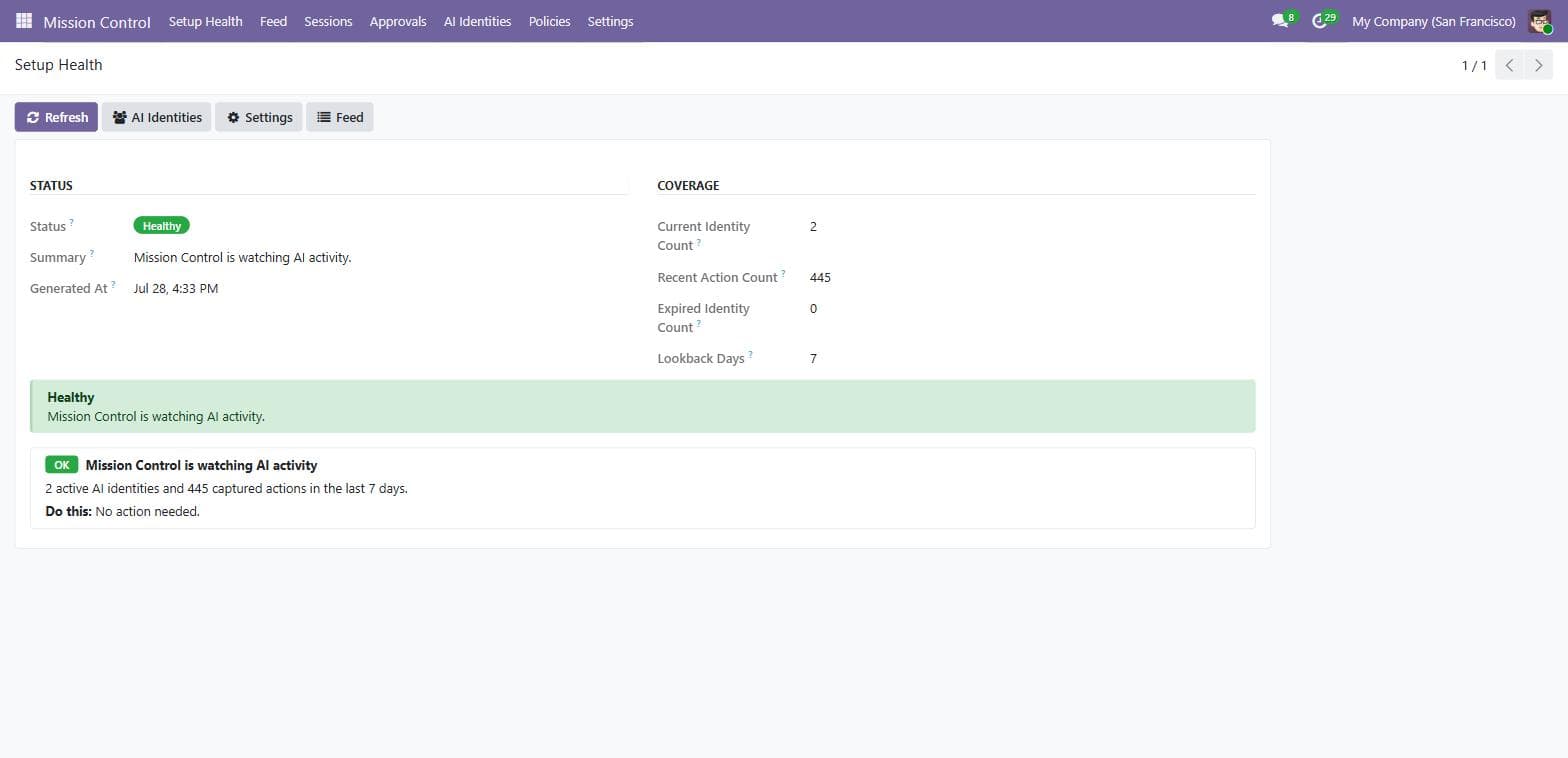
The app's landing screen — a traffic-light checklist that answers “is this thing actually watching?”, with a Do-this next step on every warning.
The checks it performs
| Check | Severity | |
|---|---|---|
| No active AI identities configuredNothing is being watched. Open AI Identities and create one per AI user or key. | Action needed | Nothing is being watched. Open AI Identities and create one per AI user or key. |
| No AI actions captured in the last N daysThe AI probably isn't entering Odoo through a flagged user or key. Run one small AI change and confirm it appears in the Feed. | Check | The AI probably isn't entering Odoo through a flagged user or key. Run one small AI change and confirm it appears in the Feed. |
| Policies / Approvals / Rollback is offThat protection is inactive. Open Settings and turn it on if you expected it on. | Check | That protection is inactive. Open Settings and turn it on if you expected it on. |
| AI identities past Valid UntilThose identities are currently being denied. Extend Valid Until if still in use, or archive them. | Check | Those identities are currently being denied. Extend Valid Until if still in use, or archive them. |
| Mission Control is watching AI activityGreen — with identity and action counts for the lookback window. | OK | Green — with identity and action counts for the lookback window. |
The lookback window for the “recent actions” check is Settings → Health Lookback (default 7 days). Header buttons jump straight to AI Identities, Settings and the Feed.
Who counts as AI
AI Identities
Mission Control only supervises work it can recognize as AI work. An identity declares who the AI is — by Odoo user, by API key, or both.
User-bound
Link the identity to an Odoo User. Every write made under that login is captured, badged User account. Simplest, and required for approve-replay — but it honestly covers anyone using that login, human or AI. The card says so.
API-key
Link the exact Odoo API Key the agent authenticates with. Only requests using that key match — badged API key, unambiguously the agent. Key matches take precedence over user matches on the same request.
Best practice: set both
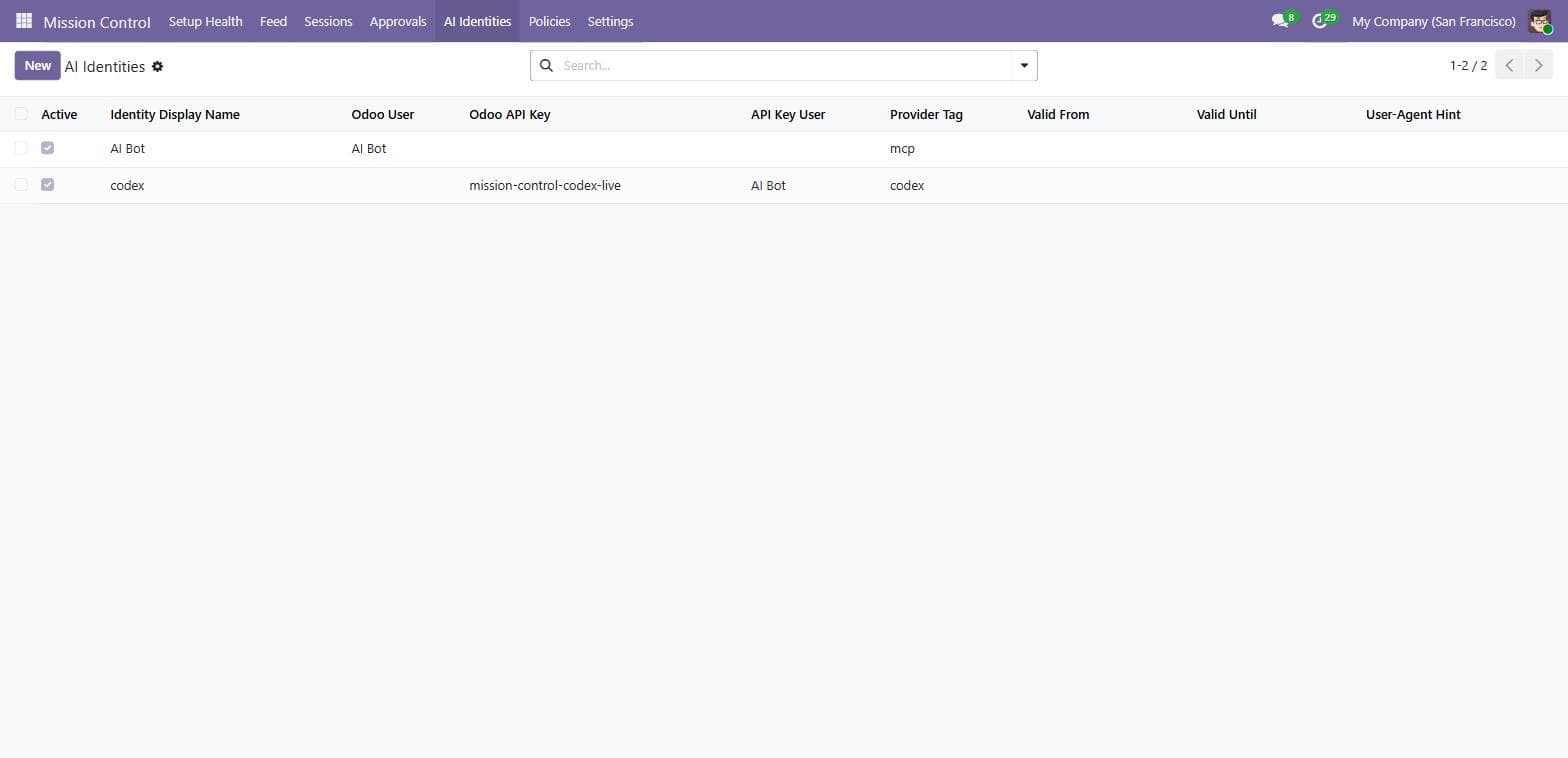
Field reference
| Field | Meaning |
|---|---|
| Identity Display Name | The human label used in every sentence, e.g. “Claude via MCP”. Required. Left blank with a user picked, it auto-fills. |
| Odoo User | The AI's dedicated Odoo user. Every write made under this login is captured. Required for approve-replay — an approval can only be replayed as a real user. |
| Odoo API Key | An existing Odoo API key to attribute to this identity. Only requests authenticating with this exact key match — the strongest attribution. Key matches take precedence over user matches. |
| API Key User | Read-only — shows which user owns the selected key (and supplies its RPC permissions). |
| Provider Tag | Short source tag such as claude, openai, mcp, odoo_ai, jsonrpc, or custom. |
| Valid From | Optional first moment this identity counts as an AI actor. |
| Valid Until | Optional expiry. Past it, the identity is denied on every write with a clear message — a built-in kill-switch for pilots. Renew or archive when it trips. |
| User-Agent Hint | Optional traffic note for your own reference. |
| Active | Turn off to stop capturing this identity without deleting its history. |
| Notes | Why this user or key is flagged as AI — for the next admin. |
The flight recorder
Reading the Feed
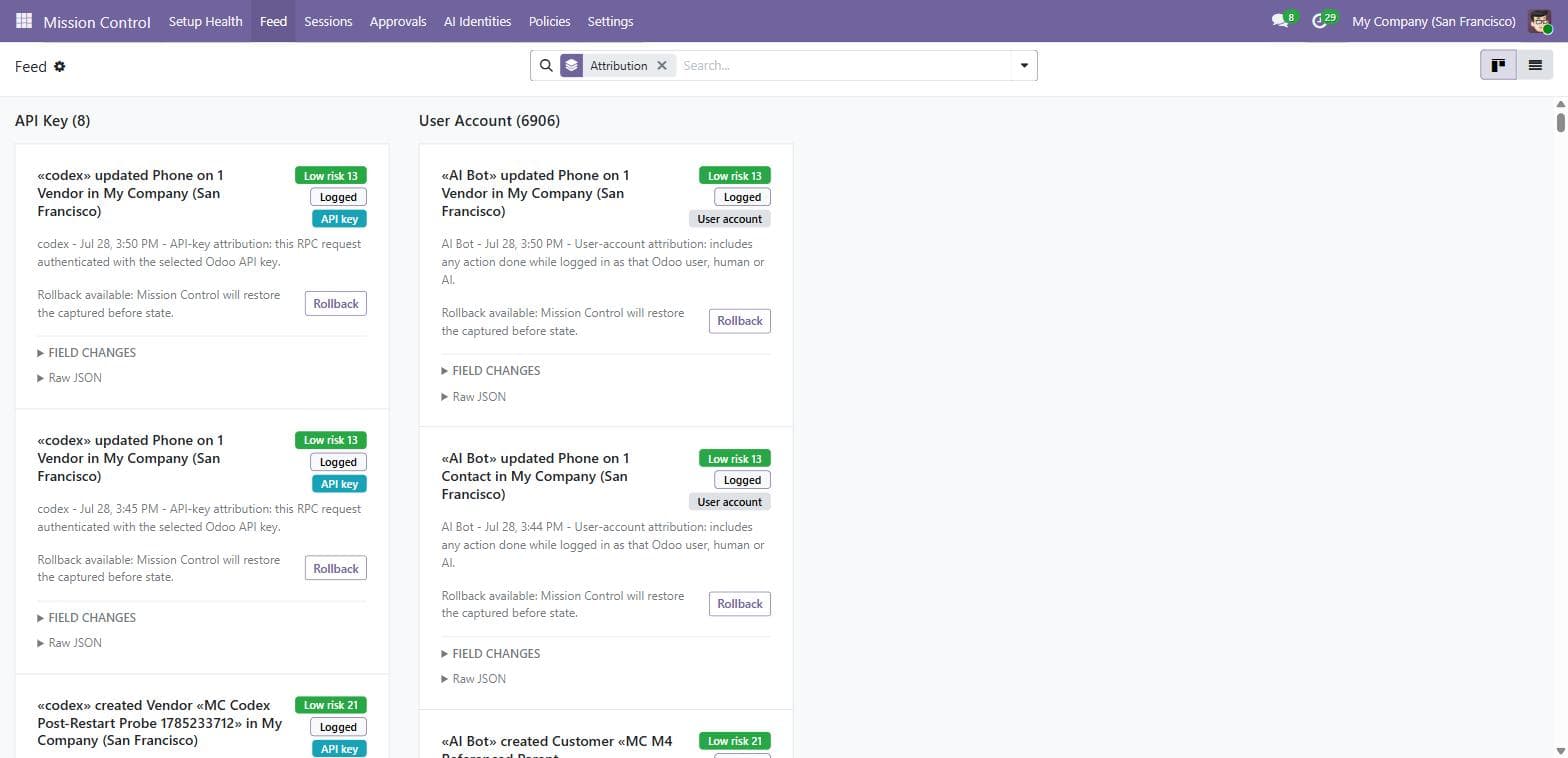
Every captured AI action as a card, newest first, grouped by attribution by default. The sentence is the point — the diffs and raw JSON are one click deeper.
Card anatomy
- 1The sentence — what the AI did, in business language: «Claude via MCP» created 3 Vendor Bills totalling €12,400.
- 2Risk chip— High ≥ 70 (red), Medium 40–69 (amber), Low < 40 (green). Deterministic, tuned so routine invoice edits stay mid-band and “High” actually means look at this.
- 3Status badge and attribution badge (API key / User account), plus identity and timestamp.
- 4Rollback line — a plain sentence saying whether undo is available, with the Rollback button when it is.
- 5Field changes (collapsed) — per-field Before → After using human labels; linked records show their names, not ids.
- 6Raw JSON (collapsed) — the full capture payload for auditors.
The six statuses
| Logged | The action happened and was recorded. |
|---|---|
| Blocked | A Deny policy stopped it — nothing changed; the card records the attempt and names the policy. |
| Pending Approval | An Ask policy held it — nothing has changed yet; a human decision is waiting in Approvals. |
| Approved Executed | A human approved it and Mission Control replayed it. |
| Rejected | A human refused it — data untouched. |
| Rolled Back | It was undone; a linked mirror action records the undo. |
Reading tips
A Blocked or Pending Approval card means the data was not changed — it records the attempt. A rollback creates a second, linked mirror card voiced as the human who undid it; both stay.
One business operation can legitimately produce several captures (ORM side effects like journal items) — use Sessions to read them as one story, and Settings → Ignored Models to silence plumbing you never want to see.
Understand
Sessions tell the whole story
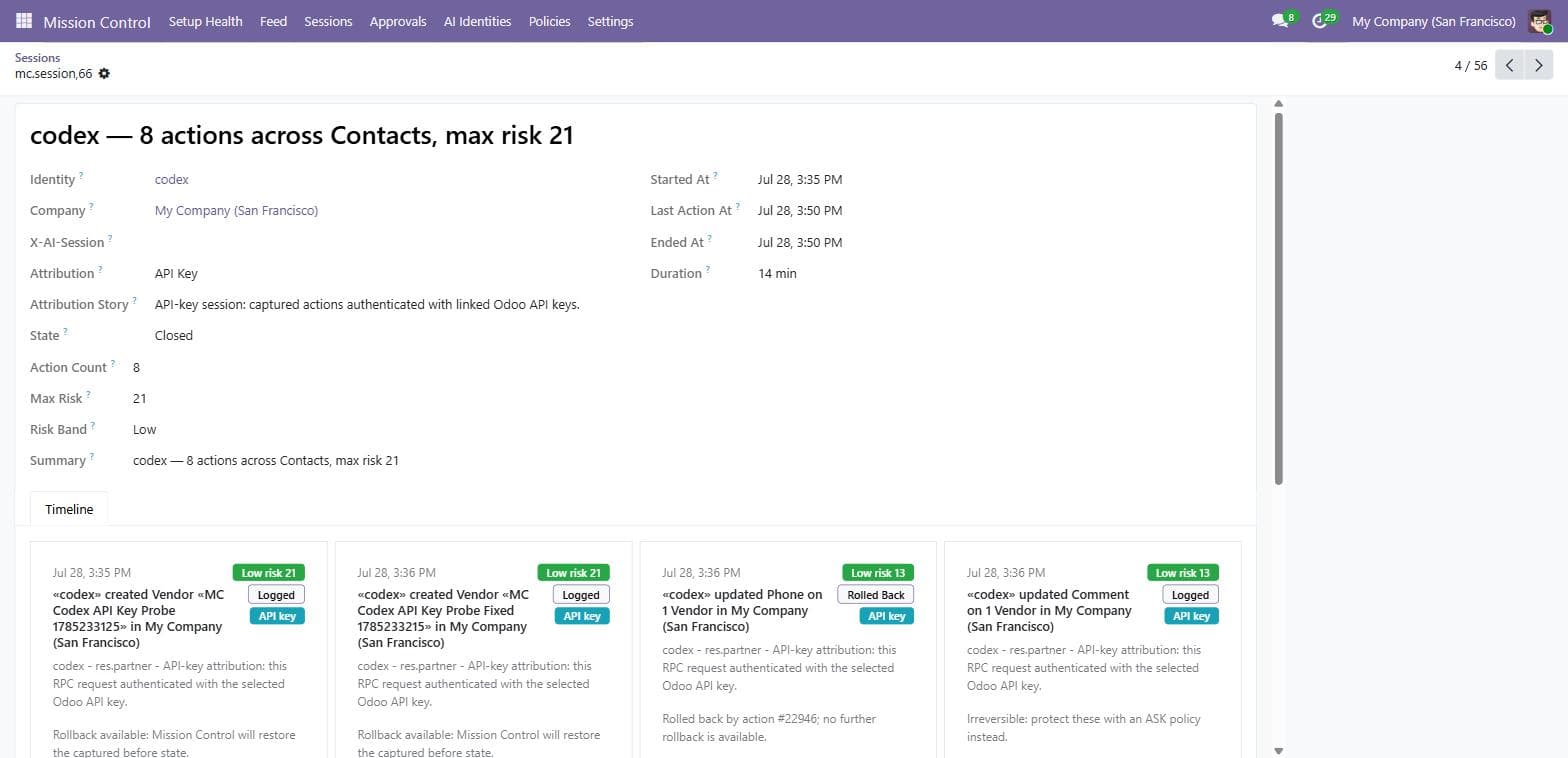
Actions by the same identity group into one session while the gap between them stays under 10 minutes (configurable). Open one for the chronological timeline.
Each session card shows the story summary — «Claude via MCP» — 23 actions across Sales and Accounting, max risk 74 — plus duration, action count, open/closed state and an attribution summary (API key, User account, or Mixed). A session closes automatically once it idles past the gap, and gets its final summary then.
Exact grouping for gateways and scripts
X-AI-Session: <your-run-id> header on each RPC request — that value wins over the gap heuristic, so one run stays one session even across long pauses.Control
Policies: Allow · Ask · Deny
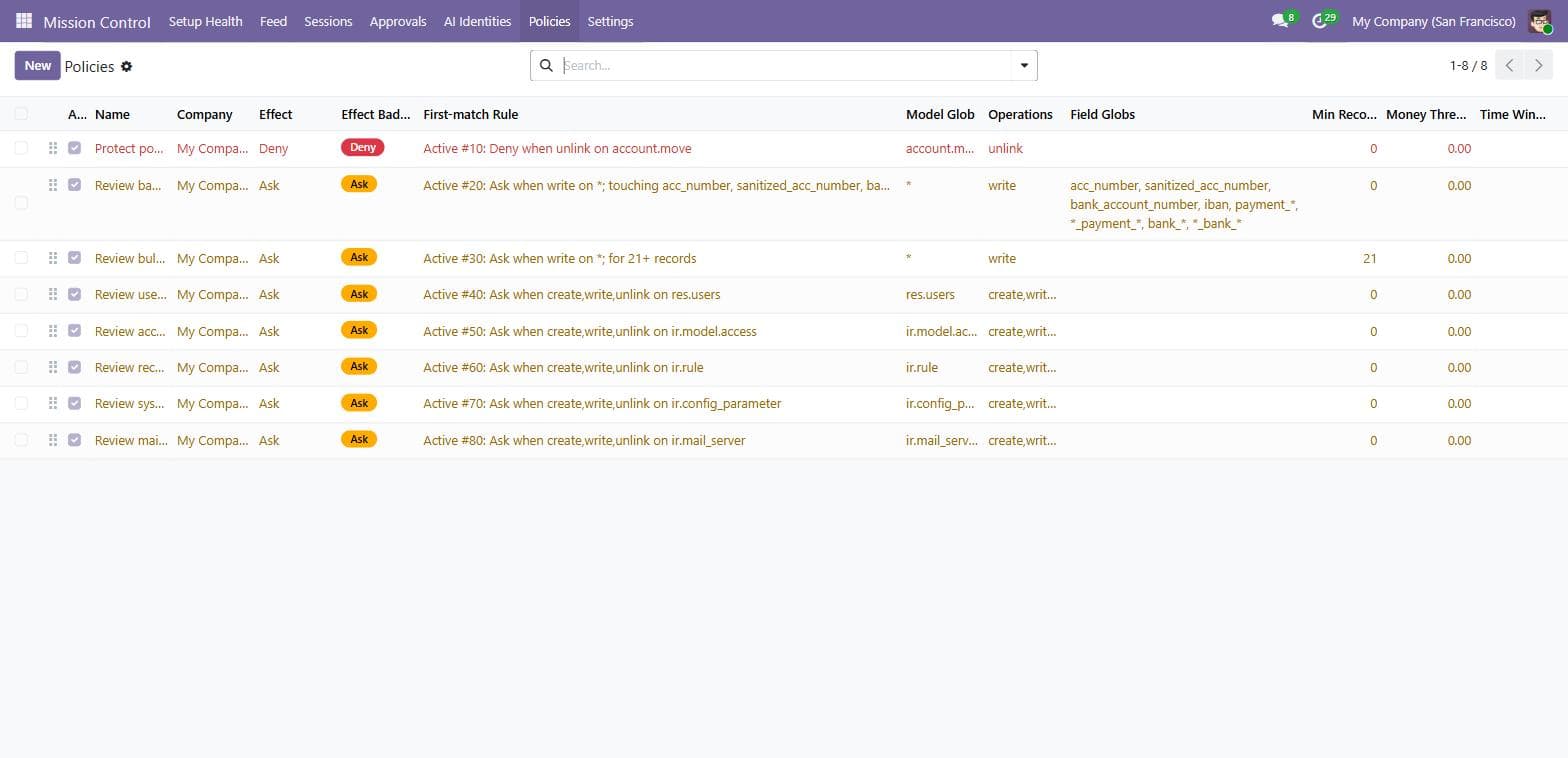
Sequence-ordered rules checked before the operation runs — from the lowest sequence upward, and the first active policy that matches decides the outcome.
Let it through and log it. Use as an explicit exception above a broader Deny or Ask rule.
Hold it and create an approval request. Nothing changes until a human approves.
Block it, naming the policy to the agent. The attempt is recorded with status Blocked.
Field reference
| Field | Meaning |
|---|---|
| Active | Disable to keep the policy editable without evaluating it. |
| Sequence | Evaluation order — lower runs first, and the first matching active policy decides. |
| Name | Appears verbatim in block and approval messages — write it for the person (or agent) who will read it. |
| Effect | Allow passes through and logs · Deny blocks immediately · Ask holds the operation and creates an approval request. |
| Model Glob | Technical model pattern (fnmatch): * = every model, or e.g. account.move, account.*, res.users. Required. |
| Operations | Comma/newline list: create, write, unlink, workflow, or *. workflow covers watchlisted methods like action_post and button_validate. |
| Field Globs | Optional patterns matched against the fields actually touched, e.g. acc_number, iban, payment_*. Blank = any field. |
| AI Identities | Optional — leave empty to apply to every AI identity. |
| Min Records | Only match when one ORM call touches at least this many records (e.g. 21 for bulk). |
| Money Threshold | Only match at or above this absolute money amount. |
| Time Window | Optional active hours as HH:MM-HH:MM ranges — e.g. 18:00-08:00 to be strict outside business hours. Blank = all day. |
| Rule Sentence | Live-computed plain-language restatement of your rule — read it before saving; it catches most mistakes. |
The default policy pack — 8 rules, active on day one
| Seq | Policy | Effect | |
|---|---|---|---|
| 10 | Protect posted entriesDeleting journal entries (account.move unlink) | Deny | Deleting journal entries (account.move unlink) |
| 20 | Review bank and payment changesWrites touching bank/payment fields (acc_number, iban, payment_*, bank_* …) on any model | Ask | Writes touching bank/payment fields (acc_number, iban, payment_*, bank_* …) on any model |
| 30 | Review bulk record changesWrites touching 21+ records in one call | Ask | Writes touching 21+ records in one call |
| 40 | Review user administration changesCreate/write/delete on res.users | Ask | Create/write/delete on res.users |
| 50 | Review access-control changesCreate/write/delete on ir.model.access | Ask | Create/write/delete on ir.model.access |
| 60 | Review record-rule changesCreate/write/delete on ir.rule | Ask | Create/write/delete on ir.rule |
| 70 | Review system parameter changesCreate/write/delete on ir.config_parameter | Ask | Create/write/delete on ir.config_parameter |
| 80 | Review mail server changesCreate/write/delete on ir.mail_server | Ask | Create/write/delete on ir.mail_server |
One rule is stricter than its name
Test against history — backtest before you trust
On any policy form, click Test against history. It saves your current edits, then evaluates only this policy against the newest 1,000 captured actions and shows exactly which past actions it would have blocked / held / allowed — with counts, a one-line summary, and the matched-action list.
It is strictly read-only: no statuses change, no approvals are created. It runs in isolation (other policies aren't applied), and time windows are evaluated at each action's own timestamp — so the answer is honest.
The workflow that works
Human in the loop
The approval workflow, both sides
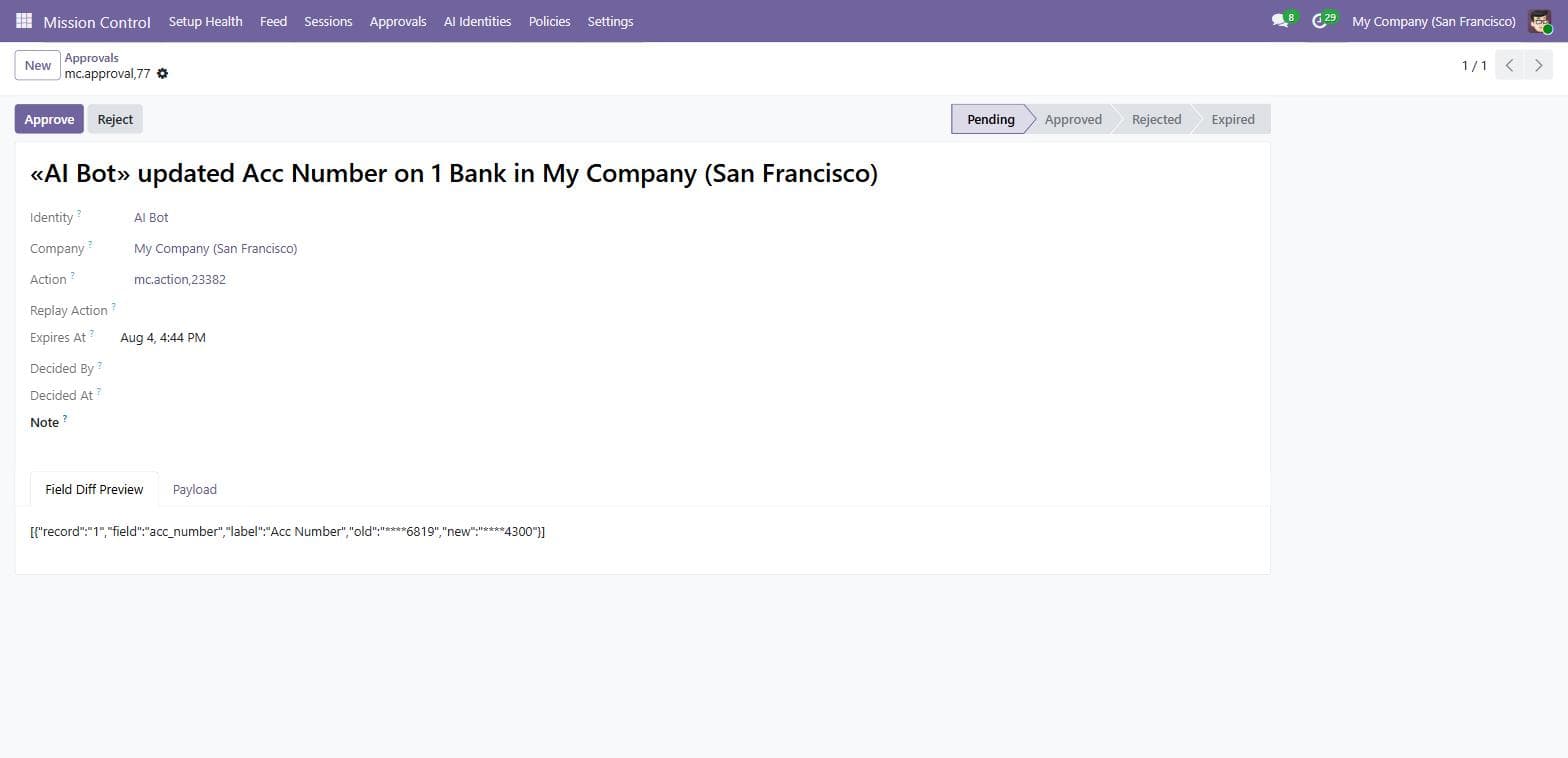
An Ask policy holds the operation — nothing touches your data — and creates a request. The agent gets a number to relay; you get the diff and one question.
What the agent sees
UserError: This action requires human approval. Approval request #123 was created in Mission Control — ask the user to review it there.
The message is written for the agent to relay. A well-behaved agent surfaces it and stops retrying. After you approve, the agent does not need to retry — Mission Control replays the operation itself.
What you do
- 1Open Mission Control → Approvals (filtered to Pending by default) and open the request.
- 2Read the sentence, the Field Diff Preview tab (the exact before → after that will be applied) and, if auditing, the Payload tab.
- 3Click Approve— the operation is replayed in a fresh transaction as the identity's user, fully captured, and linked back; the original action becomes Approved Executed. Or Reject — data untouched, optional note recorded.
- 4Each request is decided once. Pending requests expire after 7 days (configurable) and can no longer be approved — the agent has to try the action again.
Two failure cases worth knowing
“…cannot be replayed because the AI identity has no Odoo user” — set the Odoo User on the identity; API-key-only identities can't replay.
If the underlying records changed or were deleted since the request was made, the replay may fail — the error is surfaced and nothing is half-applied.
Undo
Rollback, honestly labelled
One click on the Feed card. Before touching anything it re-checks the records; if any safety check fails, nothing changes at all — one savepoint wraps the whole undo.
Reversible
- Plain field writes — the captured before-values are restored on exactly the fields the AI touched.
- Created records with no downstream references — they are deleted.
- Archive / unarchive toggles — just a write on
active, restored the same way.
Irreversible — by design
- Any delete (unlink)
- Payments — always
- Posted journal entries
- Sent emails
- Done stock pickings
- Workflow actions (confirm, validate, post…)
- Writes on one2many / many2many / binary / HTML fields
- Anything whose snapshot was redacted or truncated
- Actions that were blocked, held, rejected, or already rolled back
A successful rollback restores the before-state, writes a mirror action to the Feed (linked both ways, voiced as the human who clicked), posts a chatter note on the affected records, and marks the original Rolled Back. Refusals — the record changed since capture, was deleted, or is now referenced elsewhere — leave data untouched and tell you exactly why.
The guidance worth repeating
Oversight without logging in
The weekly digest
Subject: “What AI did to your Odoo this week.” Clean HTML an owner would forward — per company, on the day and hour you pick.
It contains: total actions and sessions for the period, counts by business noun (“12 Vendor Bills, 5 Contacts”), the top 5 highest-risk actions as sentences, blocked / held / approved counts, and a per-identity activity table with the API-key vs user-account split. In a multi-company database, switch company and configure each one.
Field reference
| Field | Meaning |
|---|---|
| Recipients | Comma / semicolon / newline separated emails. Blank falls back to the company email, then the admin's. |
| Schedule Day | Day of week the digest is queued for this company. |
| Schedule Hour | Server-time hour, 0–23. A background job checks hourly and sends once the hour has passed on the configured day. |
| Send test digest now | Queues a digest immediately with the current recipients — does not affect the weekly schedule. Uses your normal Odoo outgoing mail server. |
Configuration
Settings reference
Two blocks: the Flight Recorder (what gets captured and kept) and Enforcement (which protections are armed). Defaults are sensible — you rarely need to touch these.
Flight Recorder
| Field | Meaning |
|---|---|
| Retention | Days captured actions are kept before the daily cleanup deletes them. Default 180; 0 disables cleanup. |
| Session Gap | Minutes of inactivity before a same-identity action starts a new session. Default 10. |
| Health Lookback | Days the health screen checks for recent captured actions. Default 7. |
| Redaction Fields | Field-name patterns whose values are never stored — default password, *_token, *_secret, acc_number, sanitized_acc_number, bank_account_number, iban. Redacted actions are never rollback-able. |
| Ignored Models | Technical plumbing models excluded from capture (chatter, bus, attachments, logs…) — this is what keeps the Feed readable. Add your own noisy models here. |
| Workflow Methods | Methods captured in addition to create/write/unlink and matched by the workflow operation — default action_post, action_confirm, button_validate, action_validate, action_done, action_cancel. Add custom buttons you care about. |
Enforcement
| Field | Meaning |
|---|---|
| Policies | Master switch for policy evaluation. Off = log-only mode — still a full audit trail, nothing blocked or held. Default on. |
| Approvals | Off = Ask policies stop holding anything and let operations through (fail-open). Deny still blocks. Default on. |
| Approval Expiry | Days a pending approval stays actionable. Default 7. |
| Rollback | Off = rollback buttons and the rollback service refuse. Default on. |
Four scheduled jobs run behind the scenes (Settings → Technical → Scheduled Actions): retention cleanup daily, idle-session close every 5 minutes, the weekly digest check hourly, and approval expiry hourly.
When something looks off
Troubleshooting, honestly
The ten situations admins actually hit — each with the exact cause and fix.
Nothing appears in the Feed
The AI isn't authenticating as a flagged identity. Check the identity exists and is Active, the Odoo User matches the login the connector uses (or the Odoo API Key is the exact key in the connector's config), and the identity isn't past Valid Until. Setup Health will say the same.
My own manual changes show up in the Feed
You're logged in as the AI's user — that's user-account attribution working as documented: it covers anyone using that login. Give the AI a separate user, and/or link an API key for key-level attribution.
The Feed is too noisy
Add the offending technical models to Settings → Ignored Models. Note that ORM side effects (journal items, stock moves) legitimately produce several captures per business operation — use Sessions to read them as one story.
The agent reports “Blocked by Mission Control policy «X»”
A Deny policy matched. Open Policies, find X, and either narrow it or change its effect. The blocked attempt is in the Feed with status Blocked — the data was not changed.
The agent keeps retrying a held action
Ask policies raise the same message every time — the human must decide in Approvals. Approving replays the operation automatically; the agent should not retry. Tip: add a line to your agent's system prompt telling it to relay Mission Control approval messages verbatim and stop retrying.
Approve fails with “no Odoo user”
The identity has only an API key. Set Odoo User on the identity — replay must run as a real user.
No Rollback button on a card
Either the Rollback flag is off in Settings, or the action is irreversible — the rollback line on the card states which.
Rollback was refused
The record changed since capture, was deleted, or is now referenced elsewhere — the message names the specific reason, and nothing was partially applied. Make a fresh manual correction instead.
No digest arrived
Check Recipients, Schedule Day/Hour (server time), and that an outgoing mail server is configured (Settings → Technical → Email). Use Send test digest now to isolate.
Something looks broken
The module is fail-open — Odoo keeps working even if Mission Control errors. Search the Odoo log for “Mission Control” warnings; they name the exact path that failed open.
FAQ
Questions, answered
The real questions admins ask before and after installing.
MCP AI Supervisor installs as the technical module ai_mission_control and appears in your Odoo menu as Mission Control. Same product — the store name and the app name. All paths in this guide start at the Mission Control menu.
All of them, with no changes to the agent: external MCP servers (any vendor), direct XML-RPC / JSON-RPC scripts, in-house copilots, and Odoo 19's native AI agents. Capture happens at the ORM level inside Odoo, so it doesn't matter how the write arrives — only that it arrives as a flagged identity.
Only administrators — every screen and every service function requires Odoo's Settings / Administration rights. Regular users can't see the feed, approvals or policies.
No. Capture starts at install, and only for identities you've flagged. Nothing before that is in the Feed.
API key means this exact request authenticated with the key you linked — unambiguously the agent. User account means the action was done while logged in as the flagged user — agent or human at the keyboard; the card says so plainly. Key matches take precedence when both could apply.
Currently it denies AI deletion of every journal entry, draft or posted — policy matching has no record-state condition yet, so the rule is stricter than its name. If your AI legitimately needs to delete draft entries, narrow the policy to specific identities or switch it to Ask.
Log-only mode: everything is still captured, scored and grouped — a full audit trail — but nothing is blocked or held. Turning Approvals off while Policies stays on makes Ask policies let operations through (fail-open); Deny still blocks.
No. Approvals live in an admin-only screen, and deciding one requires Settings / Administration rights. The agent only ever receives the approval number to relay.
Human users are unaffected — the wrapper exits immediately via a cached lookup unless the actor is a flagged AI identity. AI writes carry a small fixed capture cost of a few milliseconds per operation.
No. Zero outbound calls, zero LLM runtime. Sentences and risk scores are computed deterministically inside your server, sensitive values are redacted before storage, and retention cleanup prunes history on schedule.
It fails open: a capture or policy-evaluation error logs a warning and lets the operation proceed, so Odoo behaves as if the module isn't installed. The single deliberate exception is a matched Deny policy — a block stays a block even if a later step errors. Uninstall is clean and un-patches everything.
Yes — every screen runs on 16 documented, admin-only, REST-shaped service functions (feed, sessions, approvals and decisions, policies and backtest, identities, rollback, digest data, health, settings) returning JSON-safe payloads. See SERVICES.md shipped with the module.
Support
Still have a question?
We build and support MCP AI Supervisor ourselves. Reach the lab directly — real answers from the people who wrote the code.
Vendor: RubyLabz · See also the product overview